
For Claude Code, Codex CLI and Gemini CLI
Every AI coding agent, one readable window.
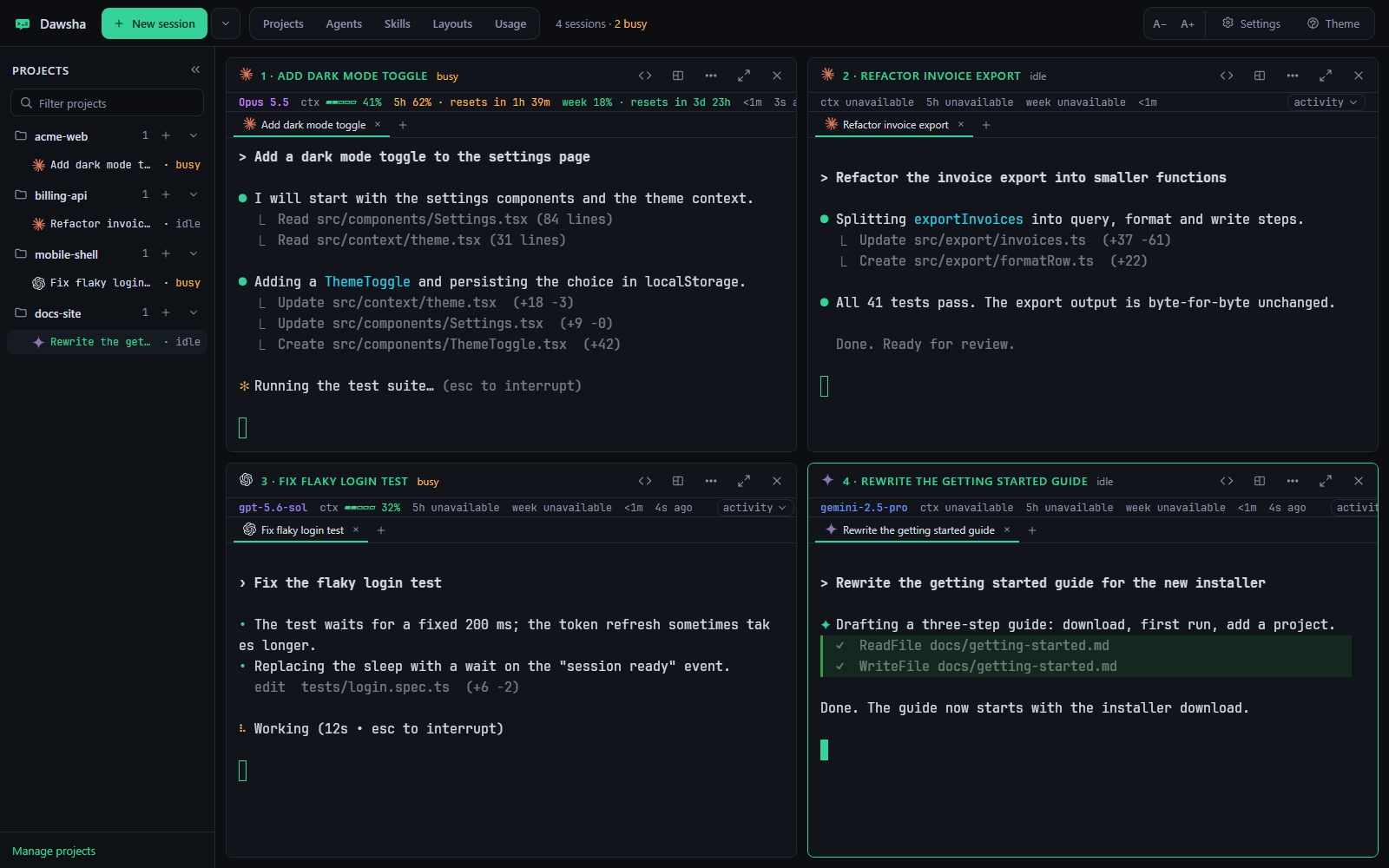
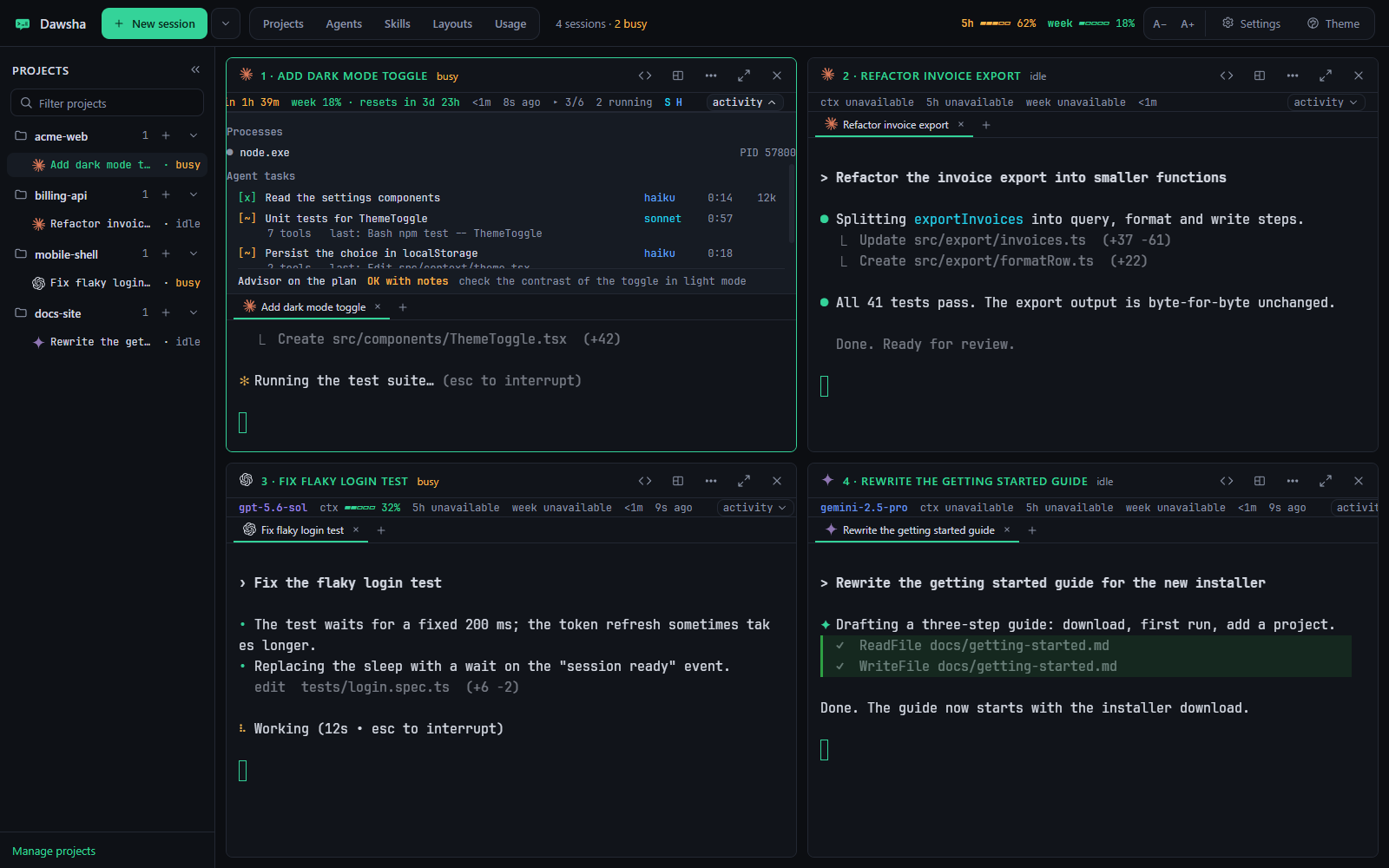
Run Claude Code, Codex and Gemini side by side in large, readable terminals, one pane per task.
Works with
- Claude Code
- Codex CLI
- Gemini CLI
Your own installs and sign-ins. Dawsha never handles credentials.
See it work
Real screenshots from the app, with sample projects.
Built for running several agents at once
Run
- Three agents in one gridUp to 6 real terminals. Resize, drag, pin or maximize any pane, Ctrl+Tab between them.
- The dawsha commandStart, resume and open layouts from the terminal you already use.
- Commit and pushReview the changed files, commit the ones you pick or commit and push. Pull, switch branch and stash in a click.
- Layouts, snippets, instructionsRestore a setup by name, insert snippets, and keep CLAUDE.md, AGENTS.md and GEMINI.md in sync.
- Import Paneon settingsBring in your projects and preferences with a backup of your current Dawsha settings.
- ThemesEight themes with contrast checks and an optional background image.
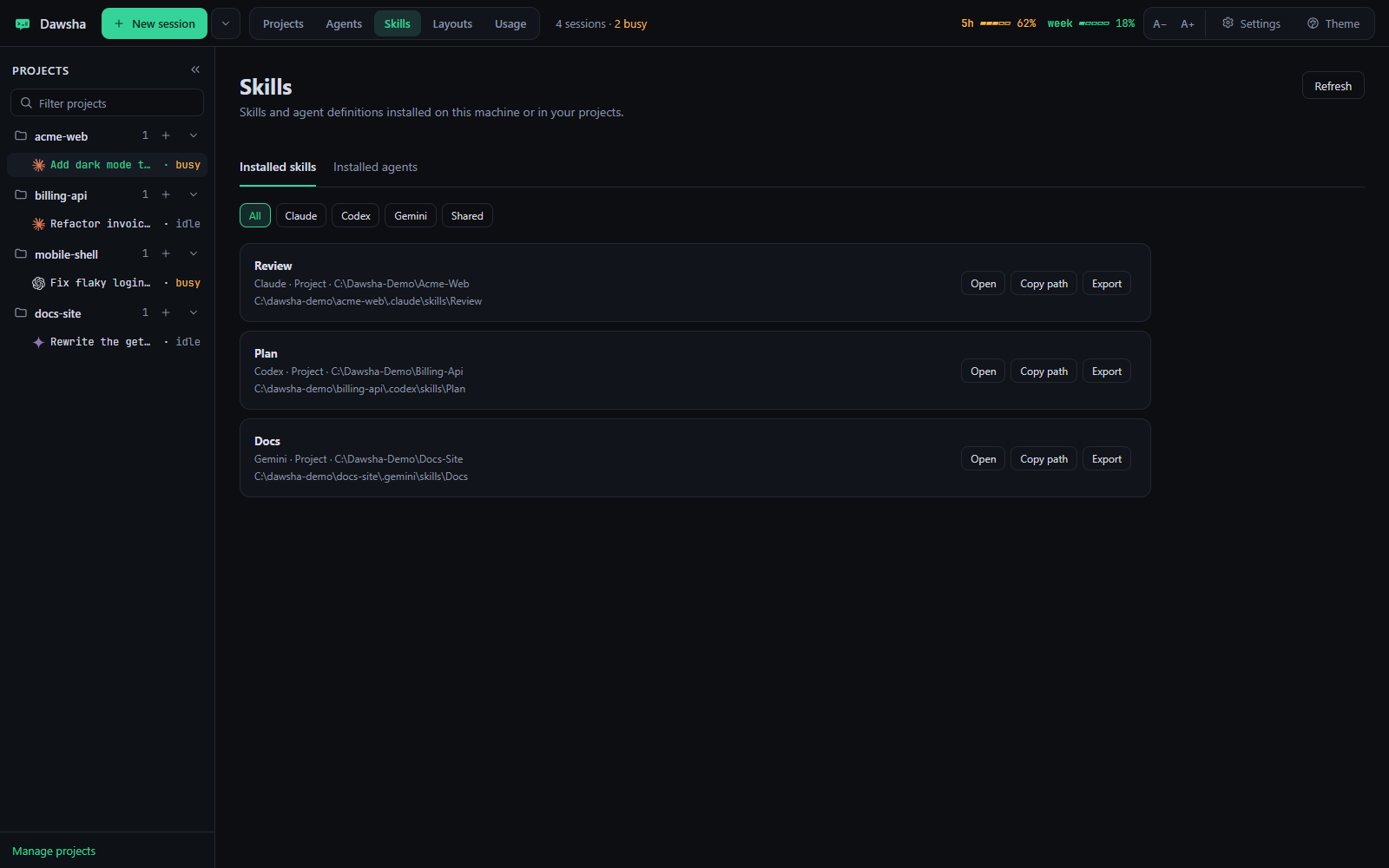
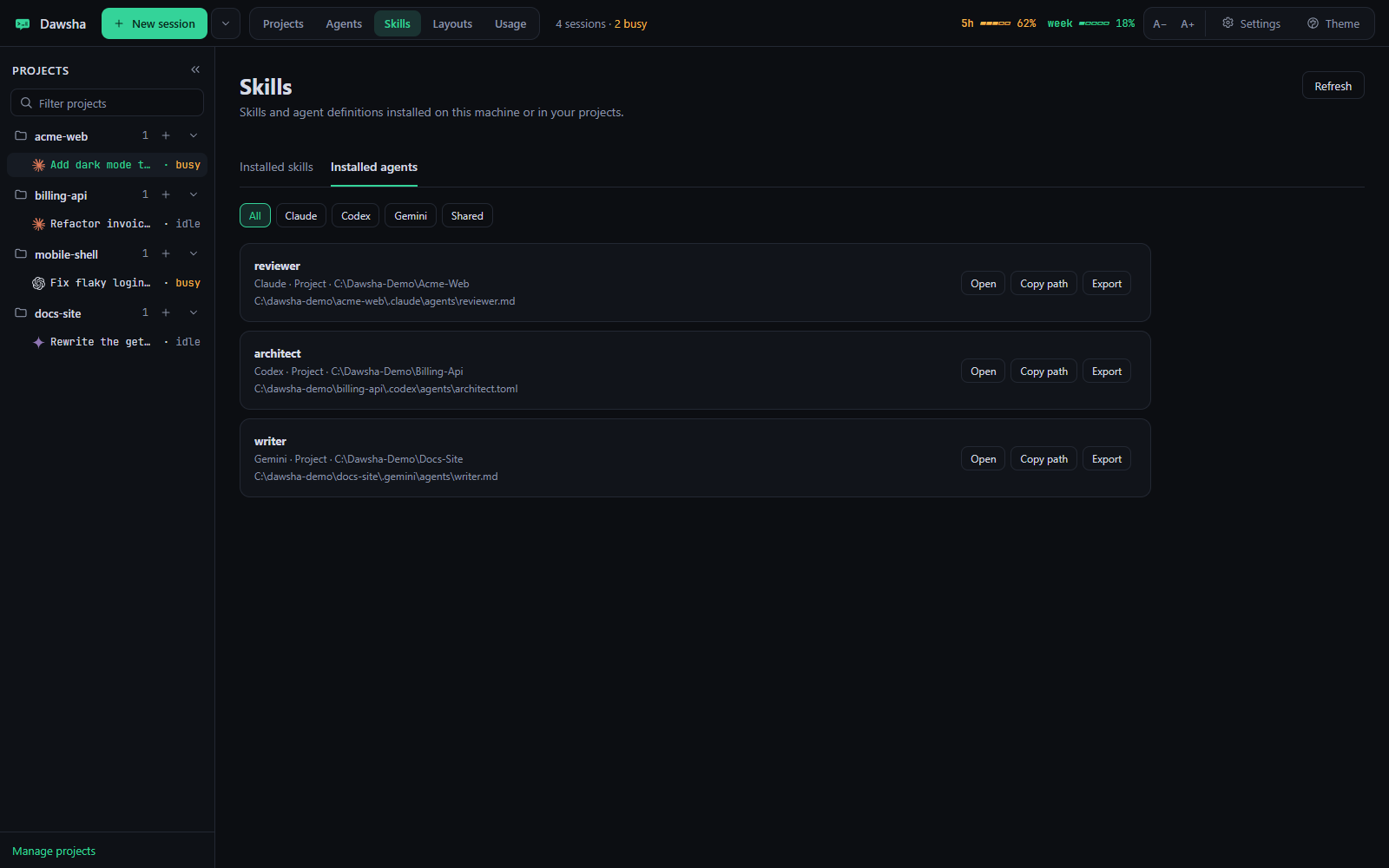
- Installed skillsBrowse, open, copy and export skills for every agent, including project skills.
Switch
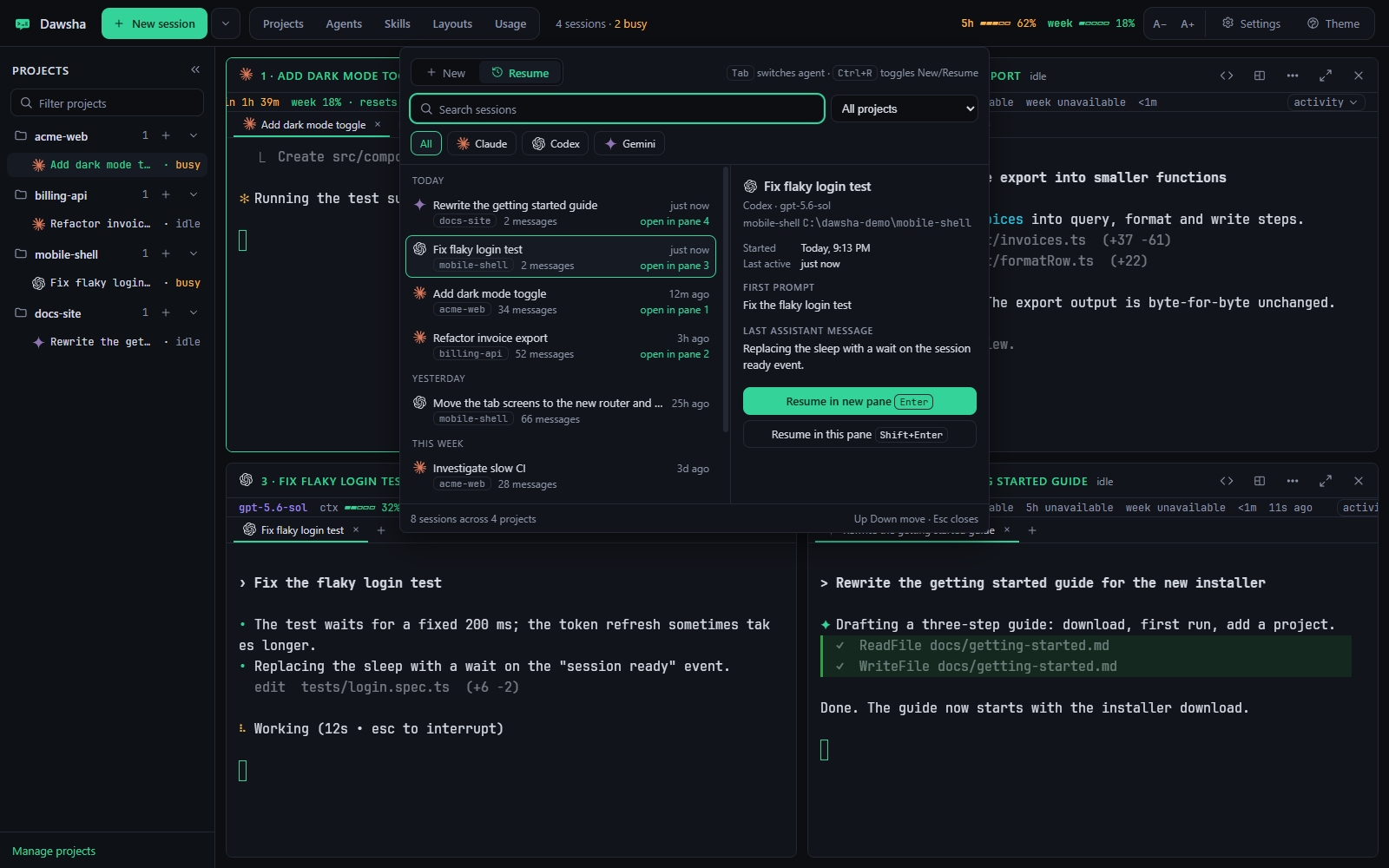
- Resume any sessionCtrl+Shift+R lists earlier sessions of all three agents.
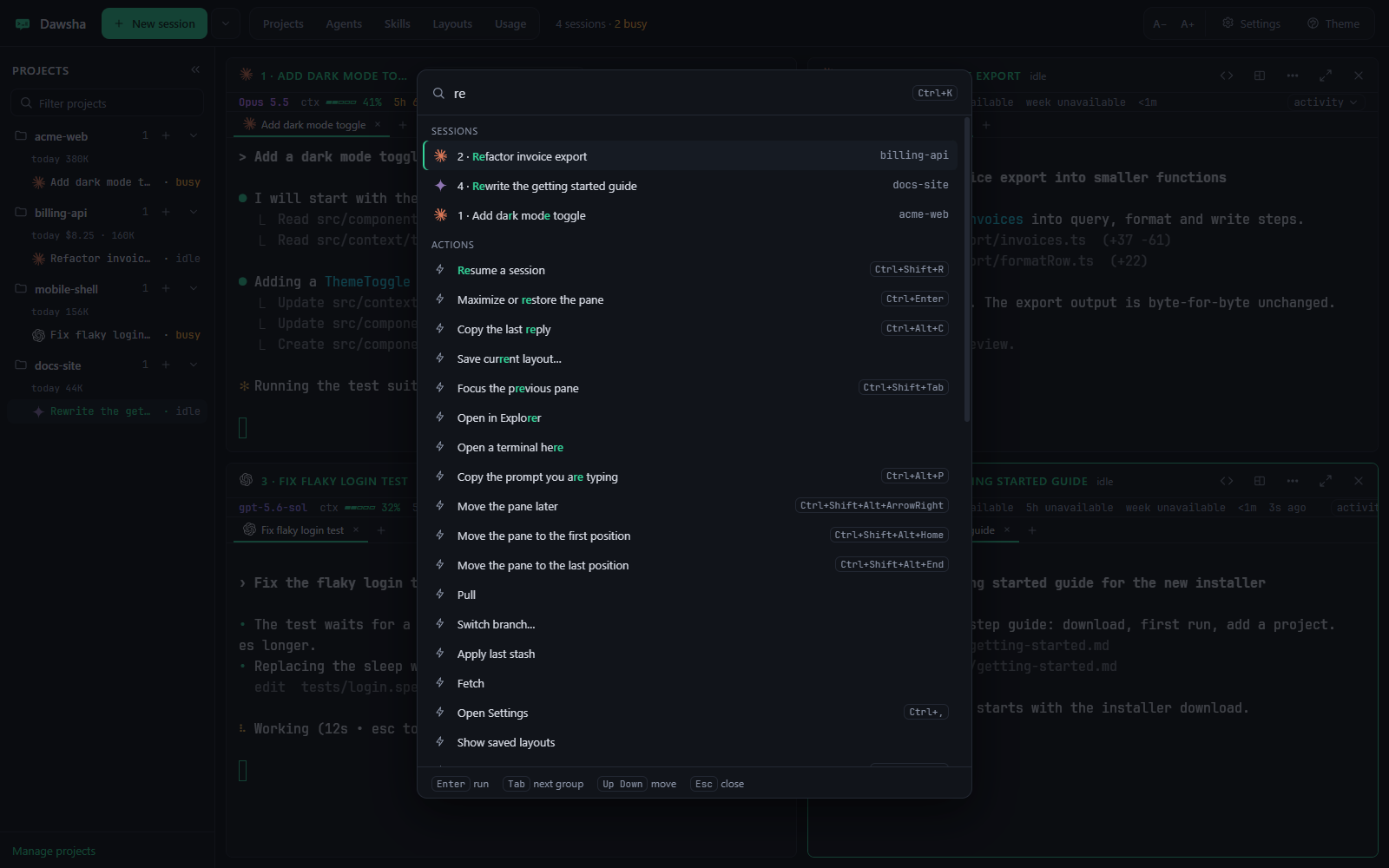
- Command paletteCtrl+K finds sessions, projects, snippets and layouts.
- Find and copySearch any pane, open files in their matching apps, and copy the last reply or the prompt you are typing.
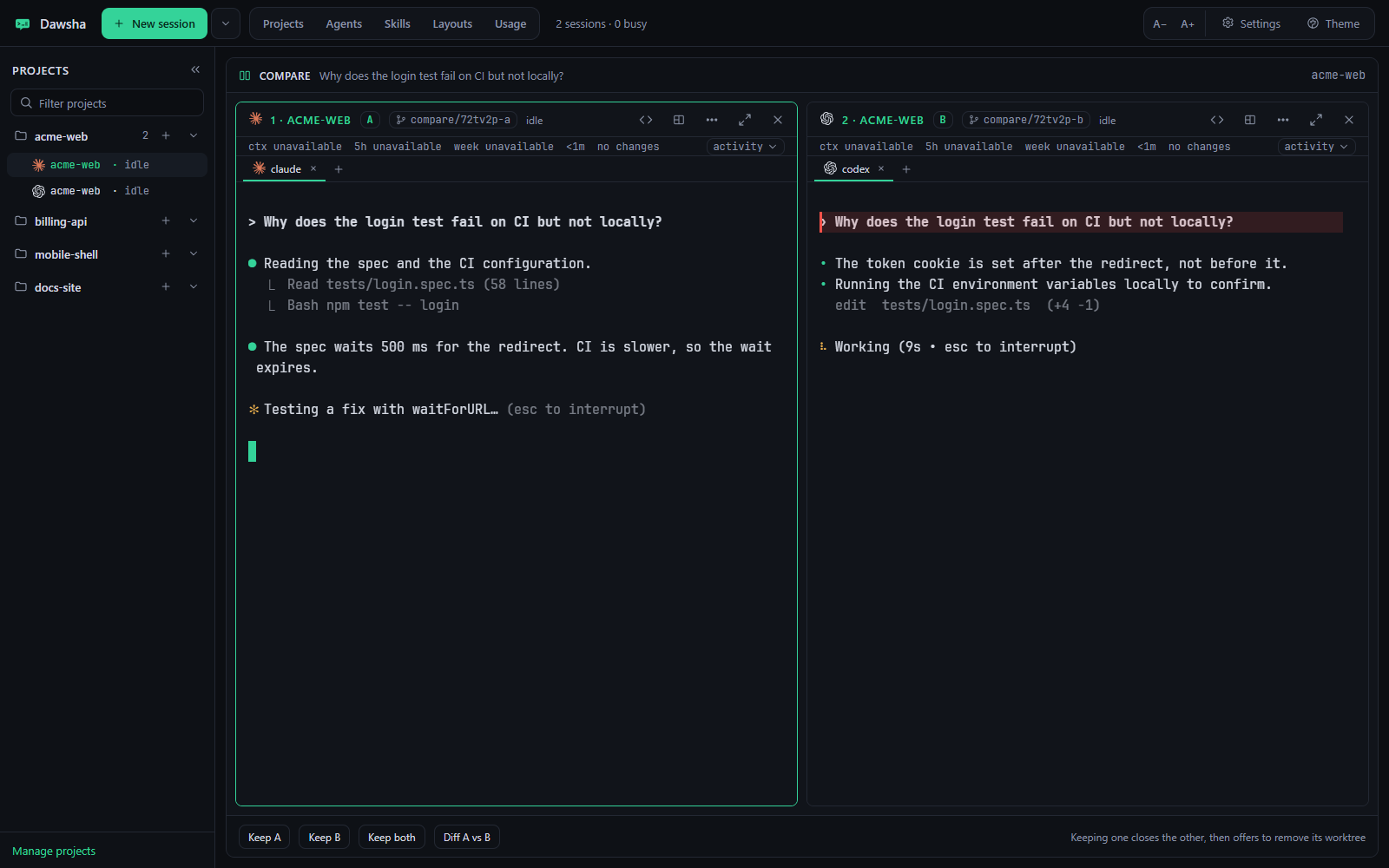
- Ask two agentsOne prompt, two worktrees, two answers to compare.
- Continue in another agentHand a session over with an editable summary, or export it as Markdown.
Stay informed
- Needs-you alertsAn amber border and a notification when a pane waits on you.
- Highlights and contextErrors stand out, and a nearly full session warns you before it runs out.
- Reset countdownsClaude panes show the 5-hour and weekly reset countdowns when Claude reports them.
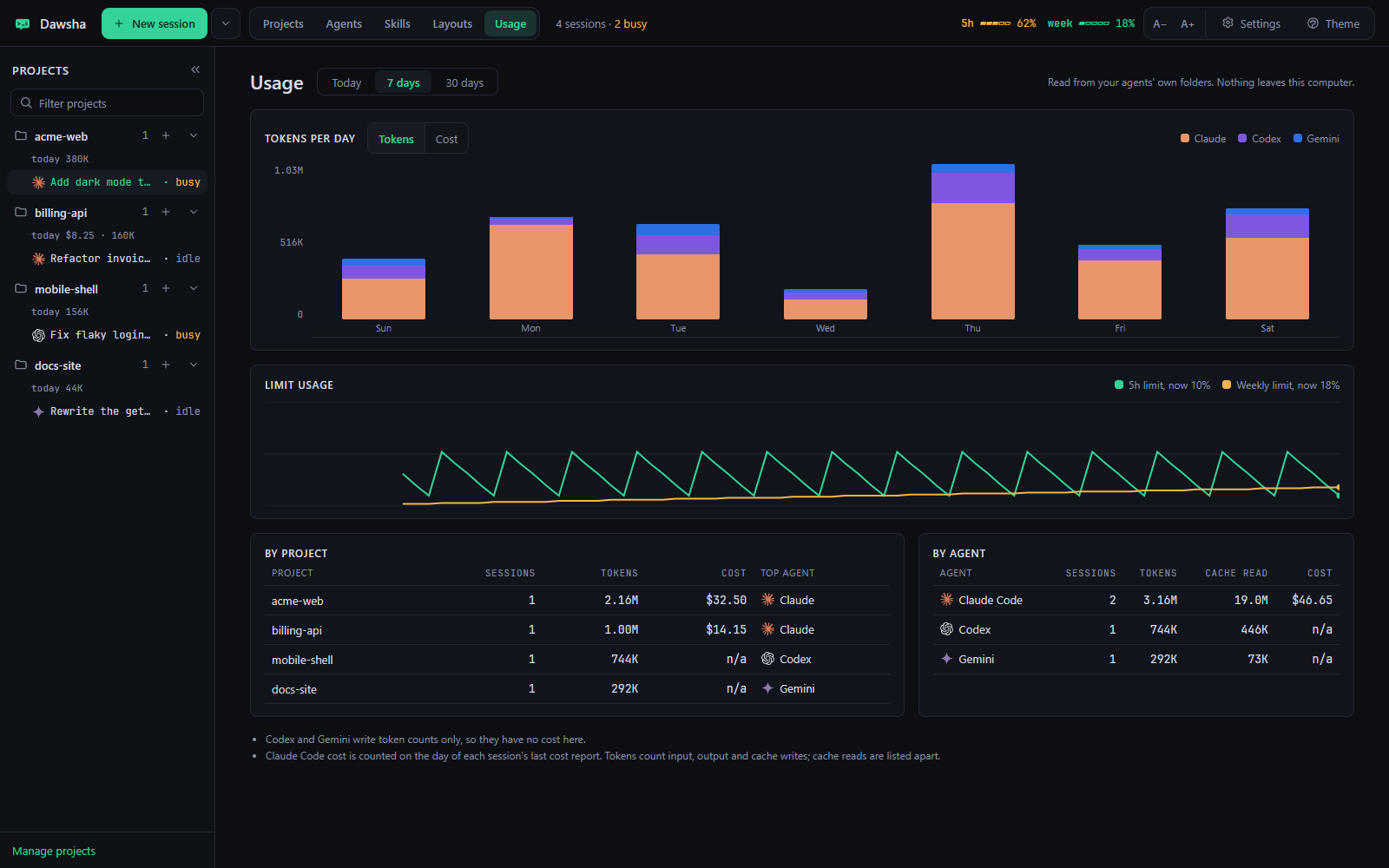
- Cost and usageTime, tokens and cost on every pane, plus a full usage view.
- In-app updatesThe installed build updates itself while sessions keep running.
- Everything localNo account and no telemetry. Nothing leaves your machine.
How it works
Install
Run the installer or the portable exe. Sign in once to each agent CLI you use, in any terminal.
Add projects
Pick a folder and a default agent. A short first-run setup shows which CLIs it found.
Start sessions
Press Ctrl+N, or run
dawsha .in a folder. Each agent runs in its own pane.Stay on top
Glance at status, plans and context. Come back when a pane asks for you.
The dawsha command
The installer adds it to your PATH. Open a new terminal and drive Dawsha from where you already work.
# add this folder and start its agent
dawsha .

# start a specific agent on a project
dawsha start billing-api --agent codex

# pick up the newest session
dawsha resume --last
Download Dawsha
Latest release, Windows 10/11 x64. Free under the MIT licence.
SmartScreen. The builds are not code signed, so Windows may show "Windows protected your PC". Choose More info, then Run anyway.
Requirements. Windows 10 or 11 (x64) and the agent CLIs you want to use: Claude Code, Codex CLI, Gemini CLI. Node.js 20+ is only needed to install Codex and Gemini from inside Dawsha.
Stop hunting for the right window.
Put every agent where you can read it.